Are you still waiting for your computer to catch up with your thoughts? The mechanical hum of a spinning hard drive is the sound of obsolescence in an era defined by instant access. Upgrading to a solid-state drive remains the single most impactful modification for aging hardware as it transforms sluggish boot times into near-instant responsiveness. Fear of a complex operating system reinstallation often paralyzes users from making this leap even though cloning the existing drive offers a sophisticated alternative that preserves every file and setting while delivering next-generation speed.
• SSD upgrades drastically improve system performance
• Traditional hard drives cause significant bottlenecks
• Cloning avoids the need for a fresh Windows install
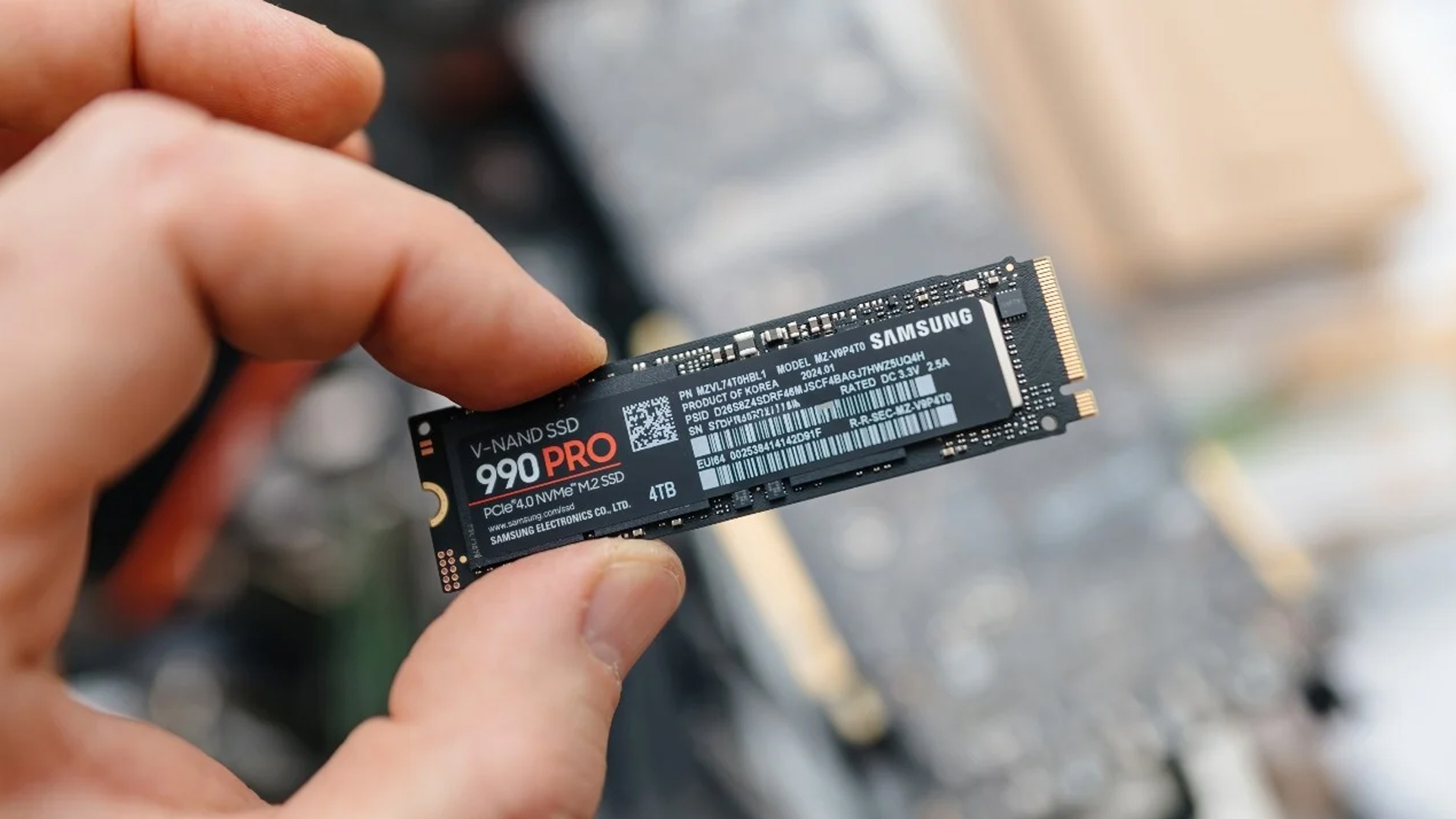
Selecting the correct hardware serves as the foundation for a successful migration. Computers utilize varying form factors ranging from standard 2.5-inch drives to the compact M.2 gumstick format so capacity matching is critical since the new destination must accommodate existing data volumes. Data preservation protocols must be enacted before any hardware manipulation begins. A comprehensive backup to an external source or cloud service ensures that an accidental misstep does not result in catastrophic digital loss.

• Verify the correct form factor for your machine
• Ensure the new drive matches or exceeds current capacity
• Perform a full backup before starting the process
Physical connection often requires specific tools depending on the machine’s architecture. Desktop users can frequently mount the new component alongside the old one whereas laptop owners generally require a USB adapter or enclosure to bridge the connection during the cloning phase. Windows may initially fail to recognize the fresh silicon until it undergoes initialization within Disk Management. Users must select the appropriate partition style which is typically GPT for modern UEFI systems or MBR for older legacy BIOS configurations to prepare the drive for data transfer.
• Laptops may require a USB adapter for connection
• Initialize the new drive in Disk Management
• Choose GPT for UEFI or MBR for legacy BIOS
The actual data migration relies on specialized software to replicate the operating system bit by bit. Manufacturers like Samsung and Western Digital frequently provide proprietary utilities designed to streamline this transition for their specific products while universal alternatives such as DiskGenius fill the gap when brand-specific tools are unavailable. This software manages the complex task of aligning partitions and copying system files to ensure the new drive functions as a seamless drop-in replacement.
• Manufacturers often provide free migration software
• Third-party tools like DiskGenius offer universal support
• Software handles partition alignment and file copying
Finalizing the upgrade involves a physical swap and a digital handshake. The old mechanical drive must be removed or relegated to secondary storage to allow the solid-state drive to take command. A visit to the BIOS or UEFI settings ensures the computer recognizes the new boot priority. Windows will subsequently launch with renewed vigor as it retains all previous files and applications while operating at velocities that make the old hardware feel like a distant memory.
• Physically install the SSD into the primary slot
• Adjust BIOS settings to prioritize the new boot drive
• Windows retains all data while running significantly faster
Via: PC Mag