Is your search bar doing enough work for you? Most Mac users treat Spotlight as a glorified digital metal detector for locating lost files but Apple has quietly transformed it into a central command center. The release of macOS Tahoe introduces powerful new capabilities called Actions and Quick Keys that fundamentally change how users interact with their machines. This update shifts the utility from a passive search tool into an active launcher capable of executing complex tasks without ever touching a mouse.
• Spotlight has evolved beyond simple file searching
• macOS Tahoe introduces Actions and Quick Keys
• The update turns the search bar into a command center
Efficiency is the primary focus of the new Actions feature. Users can now bypass application menus entirely to perform routine tasks directly from the search interface. A few keystrokes can initiate an email, schedule a calendar event, start a countdown timer, or instantly toggle system settings. This integration effectively removes the friction of opening specific apps just to perform simple functions.

• Actions allow users to bypass app menus
• Tasks like emailing and scheduling happen in the search bar
• System settings can be toggled without opening preferences
Speed enthusiasts will appreciate the addition of Quick Keys. This feature allows for the assignment of two-letter keyboard combinations to trigger specific actions instantly. These custom shortcuts drastically reduce the time spent navigating interfaces. Accessing these tools requires an upgrade to macOS Tahoe via the System Settings menu under General Software Update.
• Quick Keys enable two-letter custom shortcuts
• The feature reduces time spent navigating interfaces
• Users must upgrade to macOS Tahoe to access these tools
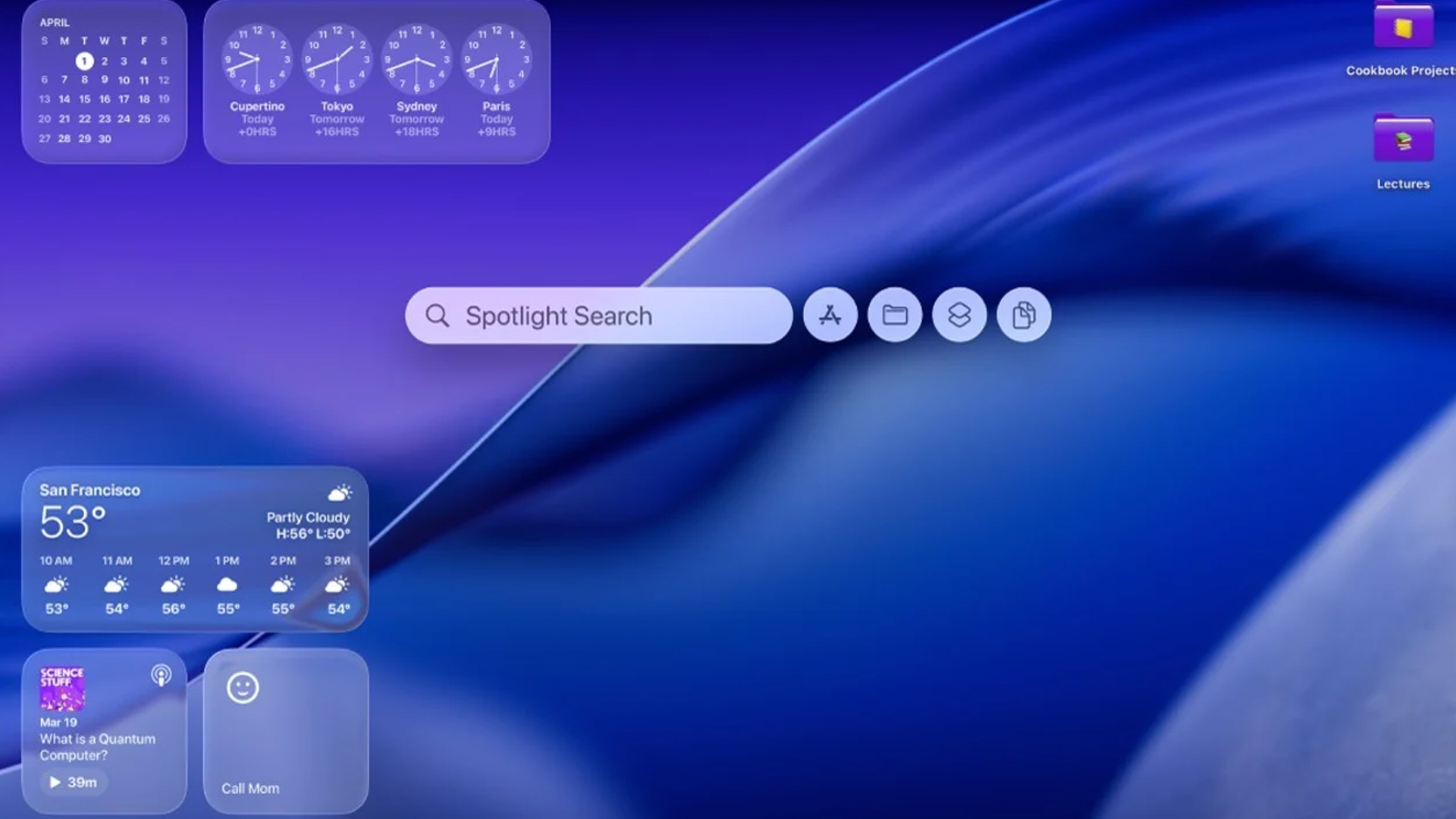
The visual interface has received a significant overhaul to accommodate these new powers. Pressing Command-Space reveals a revamped window that now displays distinct icons for Applications, Files, Actions, and Clipboard. Users can hover over these icons to filter their intent immediately or simply begin typing to see a predictive list of matches. The interface now serves as a dashboard rather than just a list of file paths.
• The interface now includes icons for specific categories
• Command-Space triggers the revamped dashboard
• Predictive typing offers immediate match suggestions
Navigating through the deluge of data is now more intuitive. Pressing the up arrow recalls previous queries while the right arrow cycles through specific categories like messages, photos, or system settings. This granular control allows users to filter out noise and pinpoint exactly what they need without scrolling through endless lists of unrelated results. The result is a workflow that feels less like searching and more like directing.
• Arrow keys allow for quick category navigation
• Users can filter results to specific types like photos
• The system recalls previous searches for faster access
Via: PC Mag